

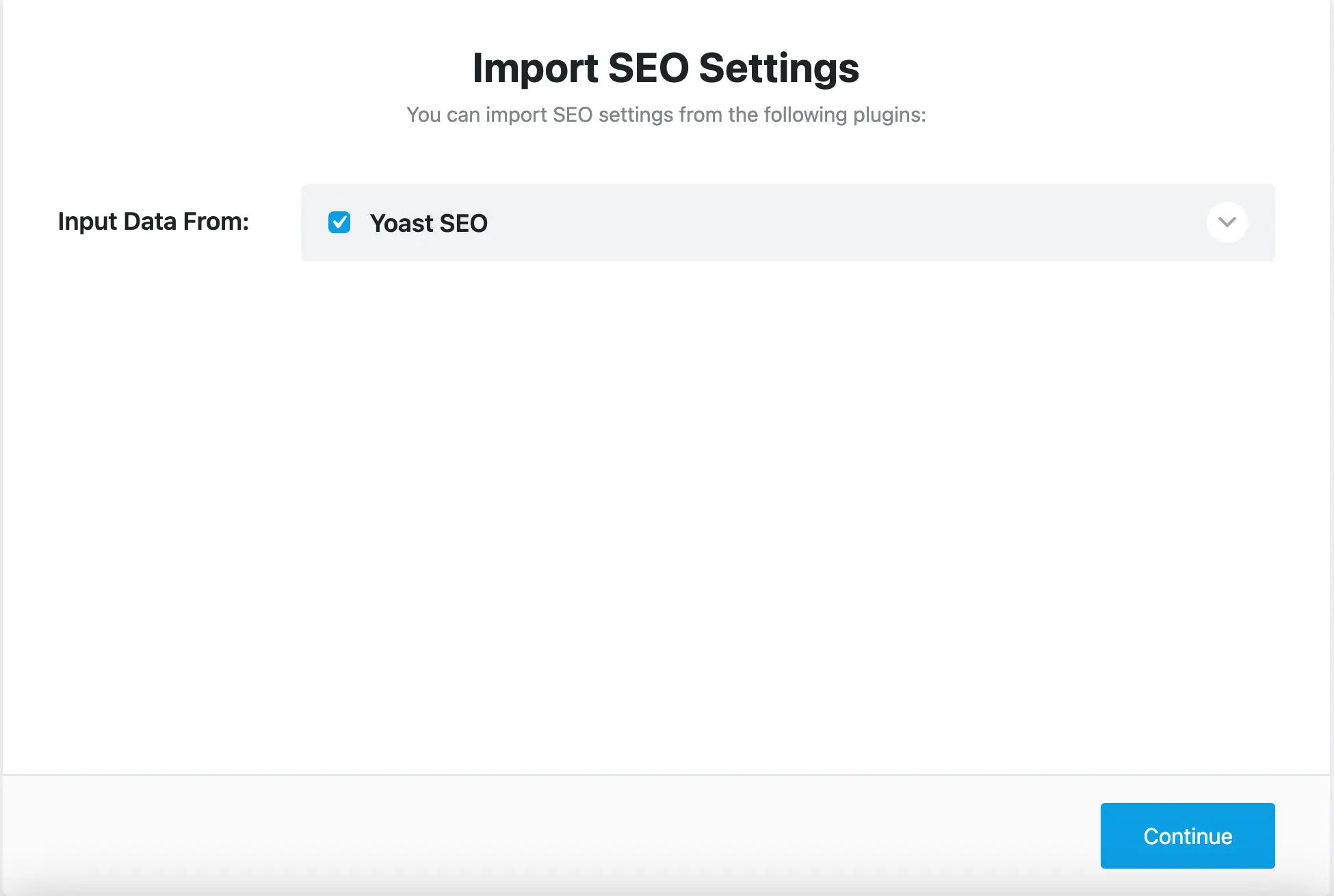
If you’ve switched SEO plugins a few times, you might notice something strange during the Rank Math setup wizard. One thing I experienced was Rank Math importing the wrong SEO plugin data.
I started with Yoast SEO, then moved to All in One SEO (AIOSEO), and finally to Rank Math. Even though Yoast was deleted long ago, Rank Math may still detect it during the “Import SEO Settings” step.
In this guide, I will show you two ways to remove Yoast SEO from database:
- The easy way (no coding) – using a free plugin
- The database way (advanced) – for those curious about the database method.
Here is a summary of both the methods.
| Method | Skill Level | Tools Needed | What It Does |
| WP-Optimize Plugin | Beginner | WP-Optimize | Removes Yoast data without the need to write any code. |
| Database Cleanup | Advanced | phpMyAdmin | Manually delete all Yoast data from the database. |
Both methods are safe — you can choose whichever suits you.
Why This Happens?
This happens because Yoast stores its settings and metadata deep inside your WordPress database. Those entries often stay behind even after uninstalling the plugin. The benefit of this is that if you ever reinstall the plugin, it will remember your preferred settings.
Rank Math’s setup wizard doesn’t only check your database — it also scans your site for:
- Yoast-related database entries
- Rank Math cached detection data
- Yoast plugin folders on your server
Even one leftover file can trick Rank Math into thinking Yoast is still installed.
Once you remove Yoast SEO from database and clear caches, Rank Math will recognize the correct plugin.
Method #1: How to Remove Yoast SEO From Database With Coding?
This is perfect for bloggers who don’t know PHP or database management.
Step 1: Backup Your Website
It is crucial to back up your website. If anything goes wrong, you can restore the site to its previous version.
There are two ways to back up a website:
- Taking a backup using the WPVivid plugin – easy for beginners
- Taking a backup from the server – for advanced users.
Step 2: Deactivate and Delete Yoast SEO
- Go to Plugins → Installed Plugins
- Find Yoast SEO
- Click Deactivate, then Delete
This removes the plugin files but not the data it left in your database.
Step 3: Install the WP-Optimize Plugin
We’ll use WP-Optimize, which safely cleans leftover data. It has a user-friendly interface. It allows you to search for and delete tables you don’t need from the WordPress admin area.
- Go to Plugins → Add New
- Search for WP-Optimize
- Click Install Now, then Activate
Step 4: Remove Yoast SEO From Database
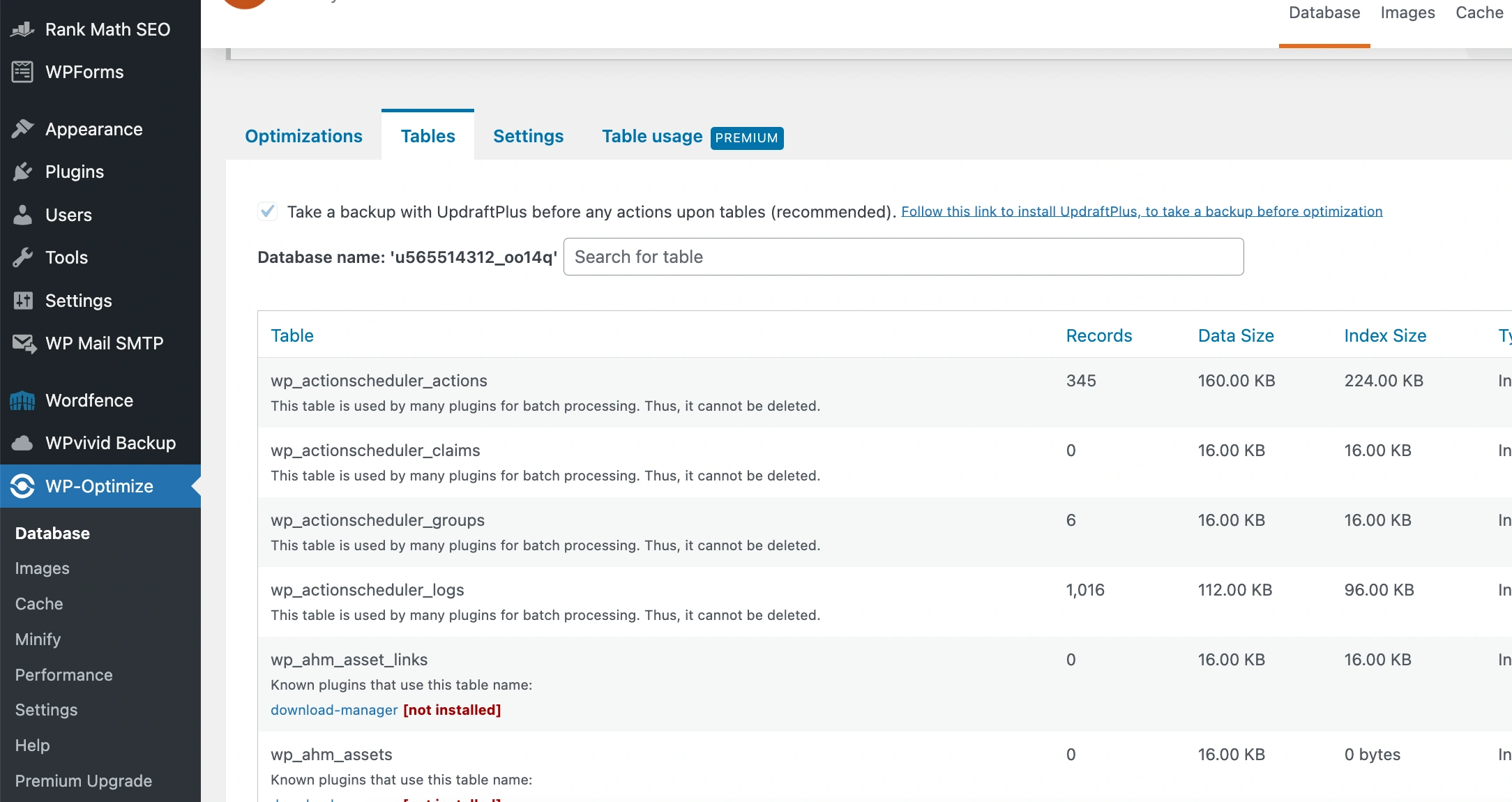
- Go to WP-Optimize → Database
- Under Tables, search for and look for any entries beginning with:
- _yoast_
- yoast_
- Click on the Remove button to remove Yoast SEO from database. Repeat this for every Yoast table.
Step 5: Clear Cache and Verify
- Clear your cache from your caching plugin (like LiteSpeed, WP Rocket, or W3 Total Cache)
- Refresh your dashboard
- Go to the Rank Math dashboard and click the setup wizard to launch it.
The “Import SEO Settings” step should show the correct plugin name (or none, if Yoast is gone).
This should remove Yoast SEO from database, and you should see the correct plugin name. However, if you still see the Yoast plugin, you must dig deeper into the database to remove all the remnants.
This process is demonstrated in the second method. Don’t worry, the step-by-step instructions make it easy for anyone to follow along.
Method #2: Remove Yoast SEO Directly From The Database (Advanced)
If you want to go one step further to ensure every trace of Yoast SEO is gone, you can delete its data directly from the database. For this, you need access to your hosting control panel to access phpMyAdmin.
Step 1: Access Your Database
Remember to backup your website!
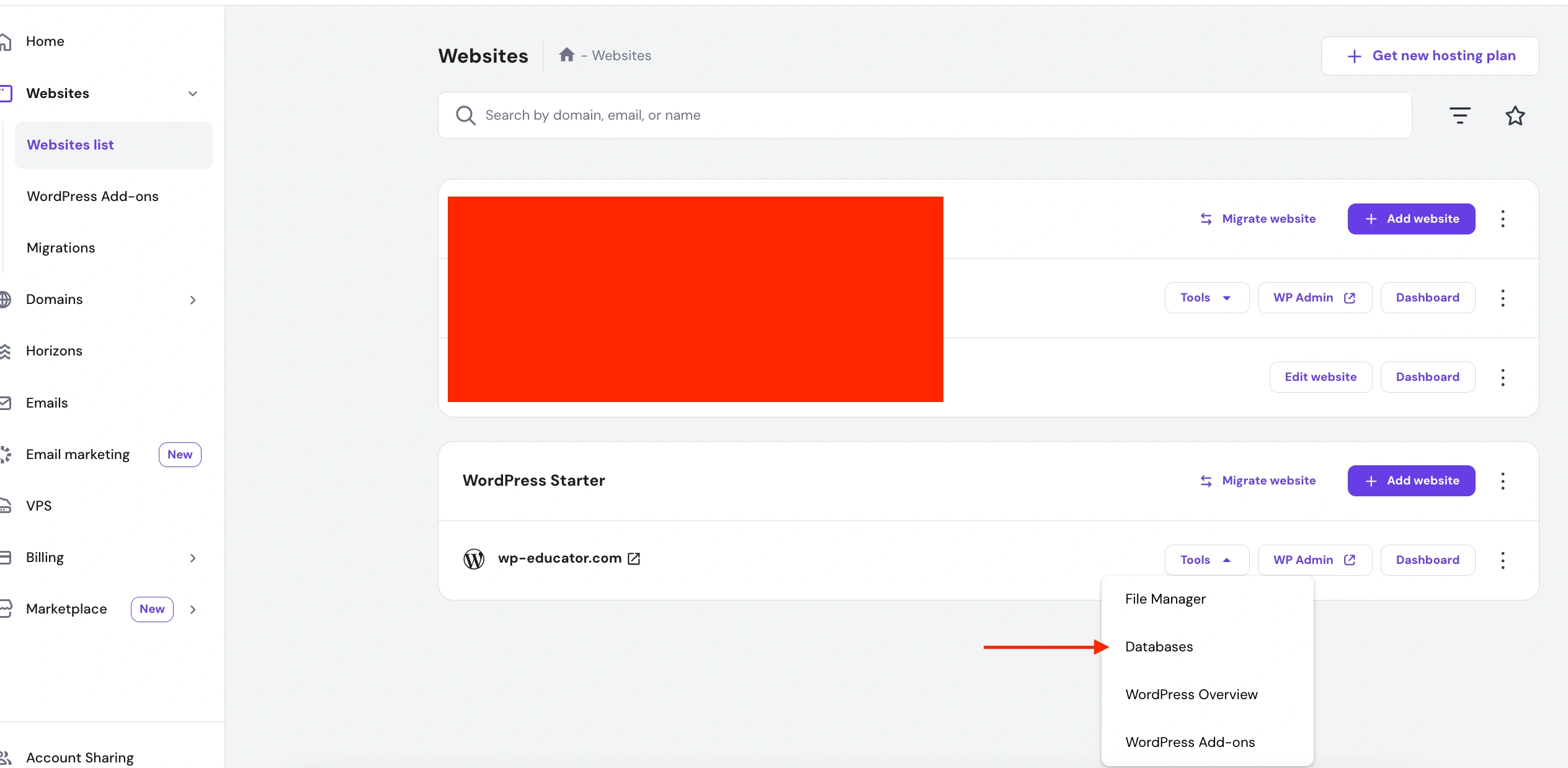
I am using the Hostinger control panel. It doesn’t matter if you have another control panel because the steps are almost identical.
Log in to your hosting control panel. Go to Websites -> Tools and select Databases from the list.
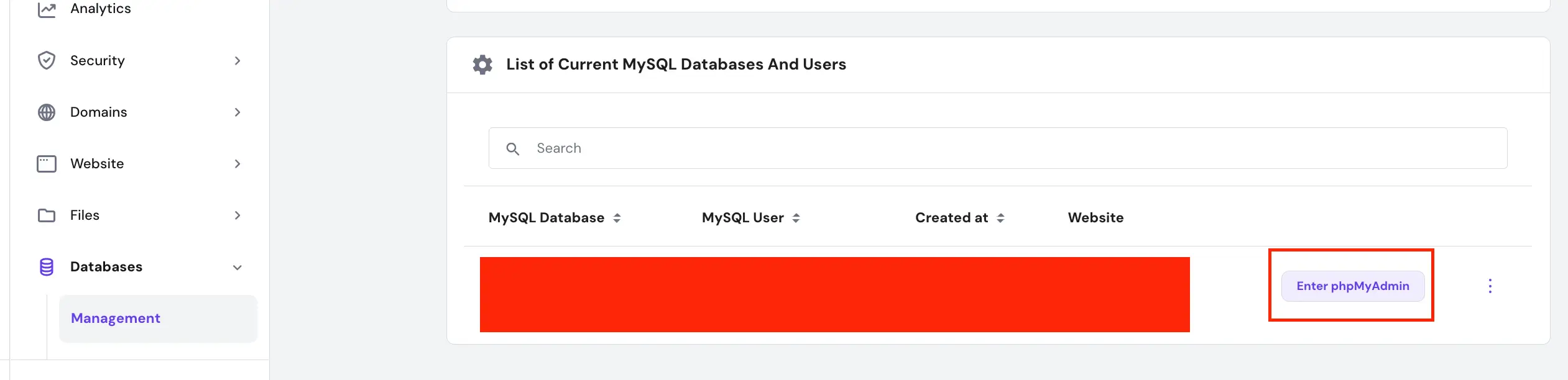
In the List of Current MySQL Databases And Users click on Enter phpMyAdmin.
Step 2: Check for Yoast Data in the Database
The first thing to do is to check if Yoast data and leftover tables does exist in the database. A quick command will help fetch the data.
In phpMyAdmin, run this query in the SQL tab and click on the Go button at the bottom.
SELECT option_id, option_name
FROM wp_options
WHERE option_name LIKE '%yoast%' OR option_name LIKE '%wpseo%';
Let’s Break It Down!
Let’s break this query down piece by piece, beginning from the second line, “From wp_options”.
1.) The wp_options table
This code is going to search from the wp_options table. The wp_options table is one of WordPress’s core database tables. It stores site-wide settings and plugin data that apply to the entire WordPress site.
When you install a plugin, it stores its settings and configuration data inside wp_options.
Even if you delete the plugin from your WordPress, these database entries often remain unless you manually clean them up.
That’s why we look here — to find leftover Yoast data.
2.) The selected columns
Now let’s look at the SELECT option_id, option_name.
option_id: The unique ID for that option (primary key).option_name: The key used by WordPress or plugins to reference the option.
You don’t select the actual option value here because usually, you just want to see which Yoast-related entries still exist.
3.) The LIKE conditions
The last line in the query, WHERE option_name LIKE ‘%yoast%’ OR option_name LIKE ‘%wpseo%’, means find any row where the option_name contains either the word “yoast” or “wpseo”.
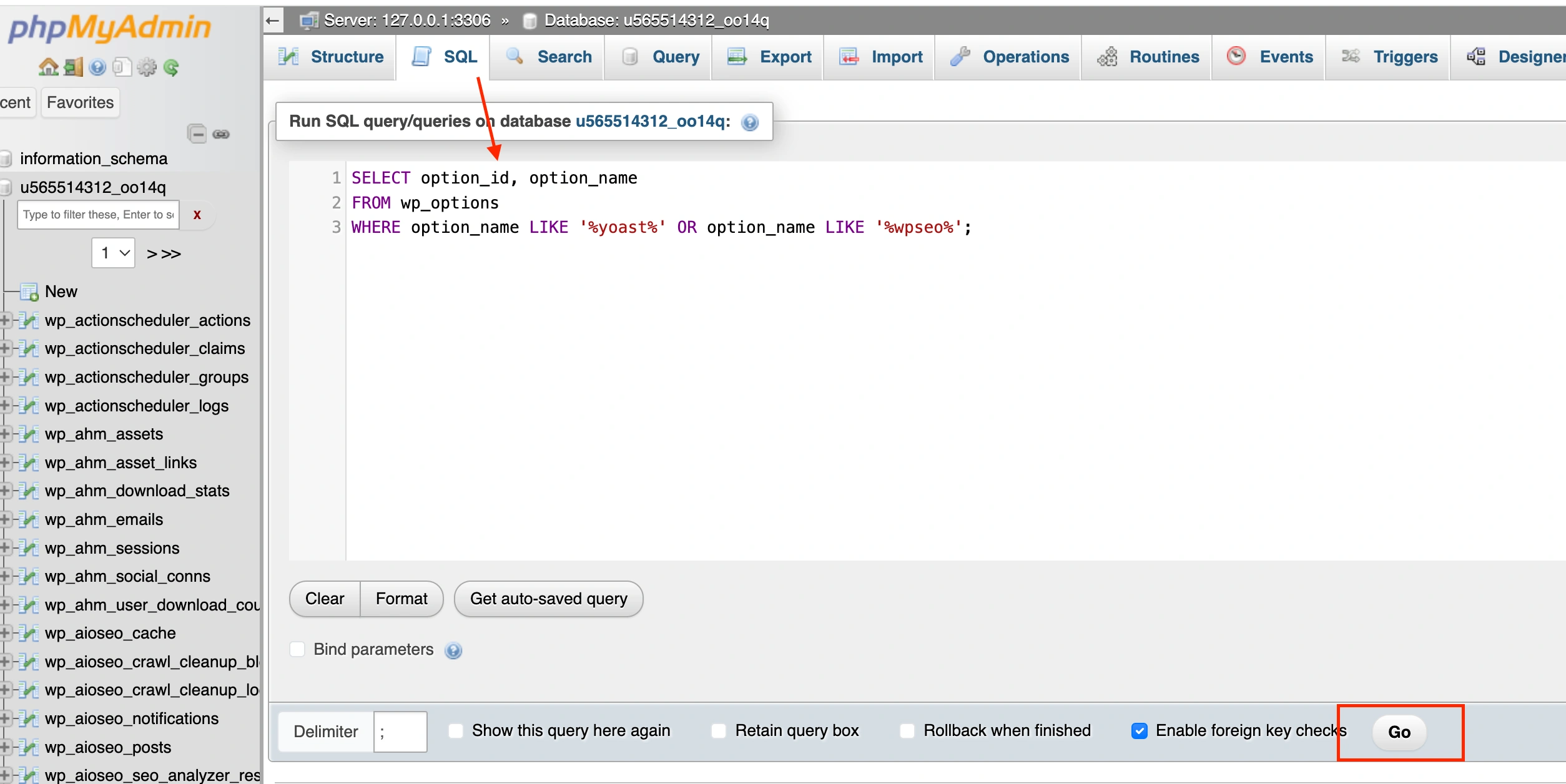
If this query returns any results, it means Yoast data still exists.
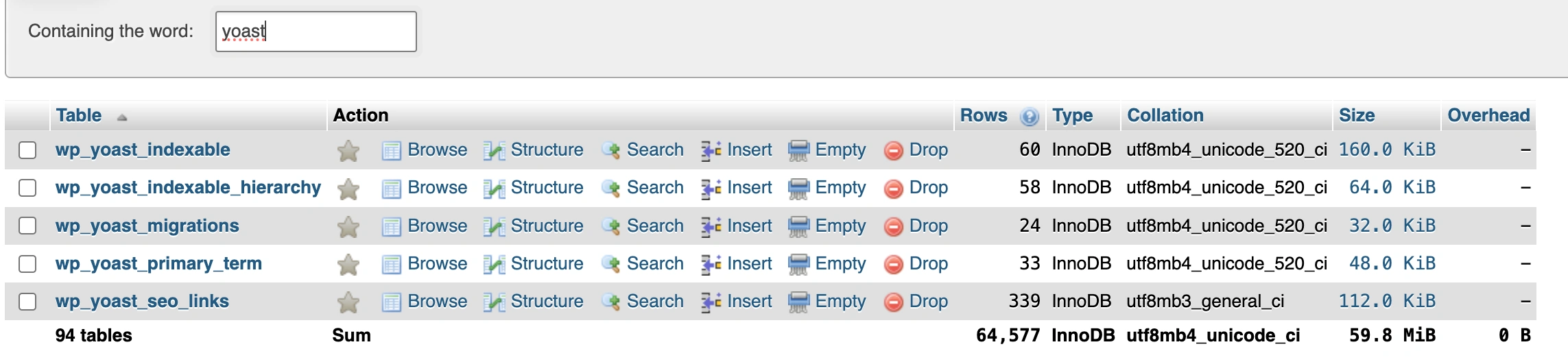
Also, check for leftover tables:
SHOW TABLES LIKE '%yoast%';
SHOW TABLES LIKE '%wpseo%';
Step 3: Remove Yoast SEO From Database Options and Tables
If you find entries you want to remove, you can check all tables and select Drop from the dropdown menu to remove these remnants from the database.
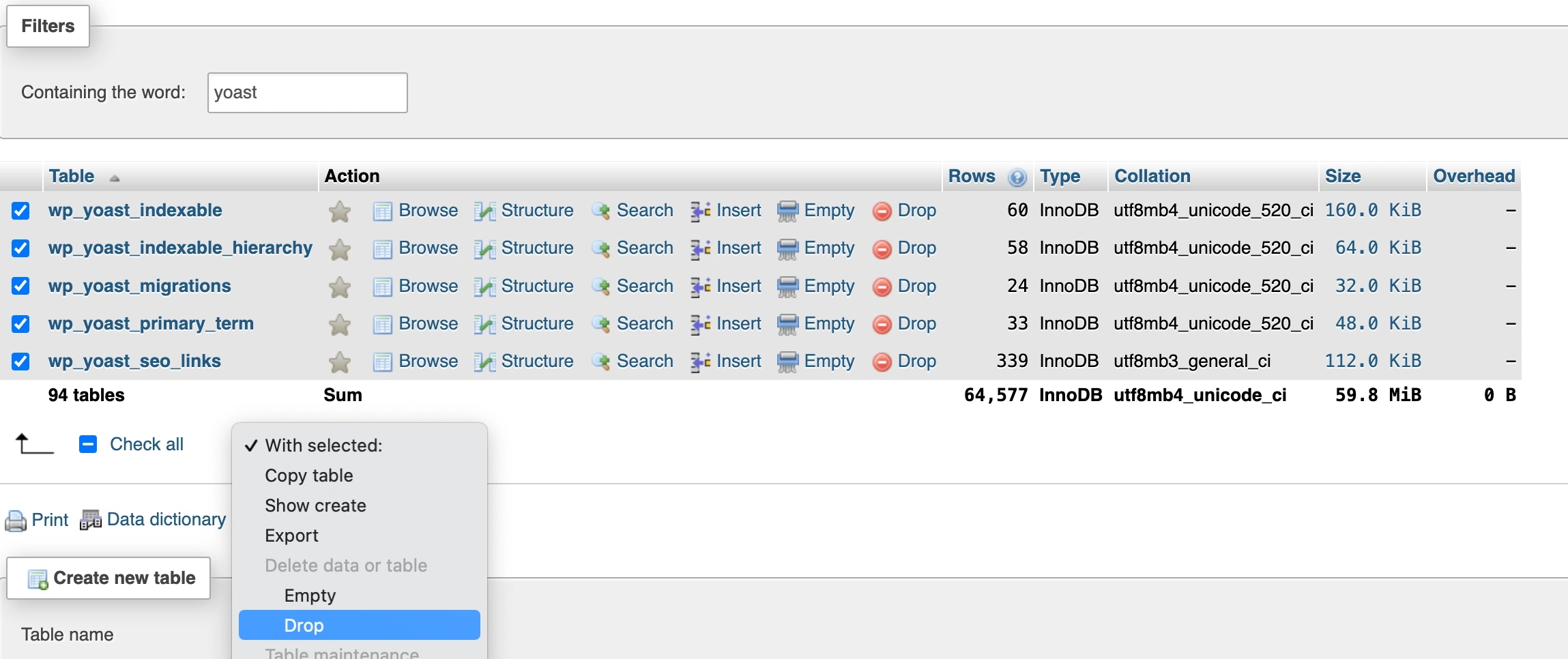
You can also run this query to remove Yoast’s stored settings from your database options table.
DELETE FROM wp_options WHERE option_name LIKE '%yoast%';Step 4: Remove Yoast Post Meta
Run this query to remove stored meta titles and descriptions in the wp_postmeta table.
DELETE FROM wp_postmeta
WHERE meta_key LIKE '%yoast%';
Let’s Break It Down!
This table stores metadata (custom fields) for each post, page, or custom post type in WordPress. So, every plugin or theme that adds extra data to posts (like SEO titles, focus keywords, or social settings) writes that data here.
Yoast SEO stores metadata like focus keyword, title, meta description, canonical URL, etc. in this table. Even after uninstalling the plugin, these entries often remain.
That’s why you’re looking for any meta_key containing “yoast” — to find those leftover fields.
Step 5: Clear Rank Math’s Cached Detection
After cleaning the database, it’s time to force Rank Math to clear its transients. Rank Math stores detection results in WordPress transients.
Go to your WordPress admin panel -> Rank Math SEO -> Status & Tools -> Database Tools. For the Remove Rank Math Transients, click on the Remove transients button.
Now, rerun the setup wizard. Go to Rank Math SEO -> Dashboard -> Setup Wizard.
If this doesn’t work, run the following query in the database.
DELETE FROM wp_options
WHERE option_name LIKE '_transient%rank_math%';

DELETE FROM wp_options
WHERE option_name LIKE '_transient_timeout%rank_math%';
Step 6: Reset Rank Math Settings (Optional but Helpful)
If Rank Math is still detecting Yoast, reset its internal data by running this query in phpMyAdmin:
DELETE FROM wp_options WHERE option_name LIKE 'rank_math_%';After this:
- Deactivate Rank Math
- Reactivate it
- Go to Rank Math → Dashboard → Setup Wizard → Restart Wizard
This should completely remove any detection cache.
Step 7: Remove Leftover Plugin Files
Even if you remove Yoast SEO from database, Rank Math may still detect it if plugin files are present.
- Open your site’s File Manager (in your hosting control panel).
- Go to: /wp-content/plugins/
- Look for folders named related to Yoast.
- Delete these folders completely.
Step 8: Clear All Caches
Now, clear all layers of caching:
- WordPress cache (via your caching plugin)
- CDN cache (like Cloudflare)
- Object cache (Redis, Memcached)
- Browser cache (Ctrl + F5 or use incognito mode)
Step 9: Restart the Setup Wizard
At this point, Rank Math should no longer show “Import from Yoast SEO.”
Conclusion
You don’t need coding skills to remove Yoast SEO from database — but if you like full control, follow the second method. Once cleaned, Rank Math will detect the correct plugin name during the Import SEO settings step.